Protec Computer Academy (An ISO 9001:2015 Certified Institute, Powered by E-Max Education, Branch Code EMAX/EK-80503, Registered by government of India.) is a best IT training center in Siwan with 100% Job placement assistance. Where you can learn Programming, WebDesigning, Hardware|Networking, Blogging, WordPress, Digitial marketing, English Speaking, And many more...| All certificates are valid in Government Jobs as well as in Private Companies. *** At Tara Market, Beside Vishal Mega Mart - Siwan*** +917541905230, Email- ahmad.irshad781@gmail.com *** Follow us on | | @welcome2protec
Showing posts with label windows. Show all posts

Tuesday, June 22, 2021

Windows Run Commands

Ahmad Irshad

Are you finding the computer general knowledge questions for competitive exams? Here I am sharing computer general knowledge quiz questions and answers covering important topics in computer awareness, which is common for all the competitive exams.

These are the selective and important questions of the computer. You can increase your knowledge by learning these computer questions which help you while solving computer questions in SSC, Bank exams and many other competitive exams.

Learning Zone About us

Windows Run Commands |welcome2protec

Windows run commands:

Using Run commands in Windows is a very efficient way to access different Windows settings and apps directly. If you memorize Run commands, you can access a particular app in just 2 steps instead of many clicks.

To access RUN, press the shortcut keys Windows key + X . In the menu, select the Run option. You can also press the shortcut keys Windows key + R to open the Run box.

Run Command Description
cmd Used to open command prompt.
notepad Used to open a blank notepad.
winword Used to open Microsoft Word.
excel Used to open a new excel sheet.
powerpnt Used to open MS-PowerPoint.
msaccess Used to open MS-Access.
onenote.exe Used to open one note (NoteBook).
C: Used to open C drive.
control Used to open control panel.
explorer Used to open Windows Explorer.
osk Used to open On screen Keyboard.
calc Used to open Calculator.
shutdown -s -t 30 Used to shutdown your PC in 30 Sec.
shutdown -r -t 30 Restart in 30 Sec
shutdown -a Used to Abort Shutdown
Appwiz.cpl Used to open Program & features where you can manage installed program.
devmgmt.msc Used to open device manager where you can check and manage installed devices.
compmgmt.msc Used to open computer management where you can manage you PC.
lusrmgr.msc Used to open Local Users & Groups where you can manage local user and groups.
dsa.msc Used to manage domain user. It will support on Server.
secpol.msc Used to open local security policy.
mstsc Used to open remote desktop.
msinfo32 Used to open system information where you can check you PC summary.
msconfig Used to open system configuration utility.
sfc Used for System File Checker Utility (Scan/Purge).
dhcpmgmt.msc Used to open DHCP (Dynamic host configuration protocol).
dnsmgmt.msc Used to open DNS (Domain name system).
services.msc Used to open services, where you can check the status of the services.
ncpa.cpl Used to open Network Connection.
diskmgmt.msc Used to open Disk management.
dxDiag Used to open DirectX Diagnostic Tool.
cleanmgr Used to open disk clean-up
mmc To open Microsoft Management console on server-2000 or successor.
Sigverif To open file signature verification
diskpart To open disk partitioning utility
sysdm.cpl To open system properties
--- ---

More on this to be updated soon Inn Sha Allah.....


Thursday, May 7, 2020

How to recover forgotten password in Windows 10

Ahmad Irshad
Use of password reset disk in Windows 10:
By Ahmad Irshad | Windows 10 > Use of password reset disk

By using password reset disk, we can recover forgotten password for a local user account on a local computer. You need to create password reset disk before using it.

Now let's see the steps, how to recover your forgotten password?

1) At the Windows 10 login screen, click on your user account and then type your password incorrectly then click on logon. A link "Reset Password" will appear just below the password field. as you can see in the below diagram.


2) When you click on the link "Reset Password" then it will start a password reset wizard as shown below diagram. Here insert your USB drive (The one in which password rest disk was created). >> click Next. 

3) Select the USB (Password reset disk) that contains the file userkey.psw >> and click Next


4) Type a new password for this user account. This password will replace the old one >> click Next


5) Now Click on finish to close the password reset wizard. That's it.


Remember: If you have forgotten your Windows password and you don't have created a password reset disk so you won't be able to reset the forgotten password. But you don't worry you can still recover by using third-party software PCUnlocker.

Visit to know how to create password reset disk with step by step.


Opening Soon! (Inn Sha Allah)
Protec | The Aim of Excellence

Visit to know more about us.


Next Topic to be updated soon..>>


Help Others, by sharing this page.

Saturday, May 2, 2020

Password reset disk in Windows 10

Ahmad Irshad
Protec | The Aim of Excellence
Password reset disk | welcome2protec.com

Password reset disk in Windows 10:
By Ahmad Irshad | Windows 10 > Password reset disk

A password reset disk is a built-in features of Windows, that allow you to reset your password on local computer if you ever forget it.

Remember: The password reset disk will only work for local Account.

How to create windows 10 Password reset disk?

1) Press win logo key + R to open run prompt, type "control" and then press enter key.

2) Inside the control panel, click "User Accounts".


3) In the left task pane click "Create a password reset disk".


4) When forgotten password wizards appears, insert your USB drive and then click Next. 


5) Now select your USB drive that you want to create password key on, then click Next. 


6) Enter the current user account password, and the click Next. 


7) Once the progress is completed 100% click on the Next.


8) On the next screen, click finish to close the wizard. 

This password reset disk contains a single file named userkey.psw which is an encrypted backup of your  password. Please save this file in a safe place in the event that you need it in the future. 

The next time If you forgot the admin password, you can use this file (userkey.psw) to recover your windows 10 password. Now let's see how to use password reset disk to recover your forgotten password? 


Opening Soon! (Inn Sha Allah)
Protec | The Aim of Excellence

Visit to know more about us.


Next Topic to be updated soon..>>


Help Others, by sharing this page.

Thursday, April 16, 2020

BitLocker To Go

Ahmad Irshad
BitLocker To Go
BitLocker To Go | welcome2Protec

BitLocker To Go is a BitLocker drive encryption on removal data drives such as USB pen drive, SD Card, external hard disk, and any other external drives.

OR

BitLocker Drive Encryption is a data protection features. It is a process of setting password on external drives like USB pen drive, external hard disk, memory card etc. so that nobody can access your USB drive unless you provide recovery key (password). In this tutorial we will see how to do it step by step.


BitLocker is supported only by the following Windows Operating System:

  • Ultimate and Enterprise editions of Windows Vista and Windows 7.
  • Pro and Enterprise editions of Windows 8 and 8.1.
  • Pro and Enterprise, and Education editions of Windows 10.
  • Windows Server 2008 and later.

If you are running windows except the above operating system so, you will not be able to use BitLocker. To know which version of Windows is running in you computer type winver command at run dialog box (to open run press win+R) and press enter.


How to set password on USB or any other drive using BitLocker To Go?

Let's follow the below steps to enable BitLocker To Go drive encryption.

First, Connect your removal storage or USB drive to your computer > then type BitLocker in the Windows search box then press enter > Select Turn on BitLocker under removal data drive - BitLocker To Go > Click Next.

BitLocker To Go
BitLocker To Go | welcome2Protec

Choose how you want to unlock the drive:

You can unlcok your drive by two ways: 1) Use a password to unlock the drive. or 2) use a smart card to unlock the drive. Since many people who don't have a smart card based security therefore, first one option is right for you so, select use password to unlock the drive. > Next

BitLocker To Go
BitLocker To Go | welcome2Protec

How do you want to back up recover key?

This step is very important if you forget your password or loose your smart card, then you can use this recovery key to unlock your drive. So either you can print it out or can save it to a file or can save on your Microsoft account. But make sure that you keep this recovery key in safe place that's not in the encrypted drive. > Once it's done click Next

BitLocker To Go
BitLocker To Go | welcome2Protec

You have two choices: 1) Encrypt used disk spaces only, If you are setting up Bitlocker for new drive or a new PC. then select the first one option. BitLocker encrypt new data automatically when you add it. 2) Encrypt entire drive. If you are enabling BitLocker on old PC or drive that's already in use then select the 2nd option. > Click Next

BitLocker To Go
BitLocker To Go | welcome2Protec

Once you click next, It'll ask you to confirm are you ready to encrypt this drive? then click on start encrypting.

BitLocker To Go
BitLocker To Go | welcome2Protec

The encryption process will start. It depending on the size of drive or how much data on it and your computer speed, it will complete the encryption process.

Once you click next, It'll ask you to confirm are you ready to encrypt this drive? then click on start encrypting.

BitLocker To Go
BitLocker To Go | welcome2Protec

How to Turn off BitLocker?

If you find that BitLocker isn't right for you and you want to disable it. So open BitLocker drive encryption, by typing BitLocker into the Windows search box, and then press enter. > Then select Turn off BitLocker.

BitLocker To Go
BitLocker To Go | welcome2Protec


Wednesday, April 15, 2020

BitLocker on windows 10

Ahmad Irshad
Protec | The Aim of Excellence
welcome2protec.com | Online IT tutorial Site

BitLocker Drive Encryption in windows 10:
By Ahmad Irshad | Windows 10 > BitLocker drive encryption


Bitlocker is a built-in features of Microsoft windows version starting with Windows Vista. that can encrypt your entire hard drive as well as help protect against unauthorized access to your hard disk drive. 

OR you can say Bitlocker drive encryption is a data protection features on Windows. Once BitLocker is turned on, nobody can access your data until you provide recovery key.
   
BitLocker is supported by the following Windows Operating System:

  • Ultimate and Enterprise editions of Windows Vista and Windows 7.
  • Pro and Enterprise editions of Windows 8 and 8.1.
  • Pro and Enterprise, and Education editions of Windows 10.
  • Windows Server 2008 and later.

If you are running windows except the above operating system so, you will not be able to use BitLocker.

How to check version of Windows OS? 

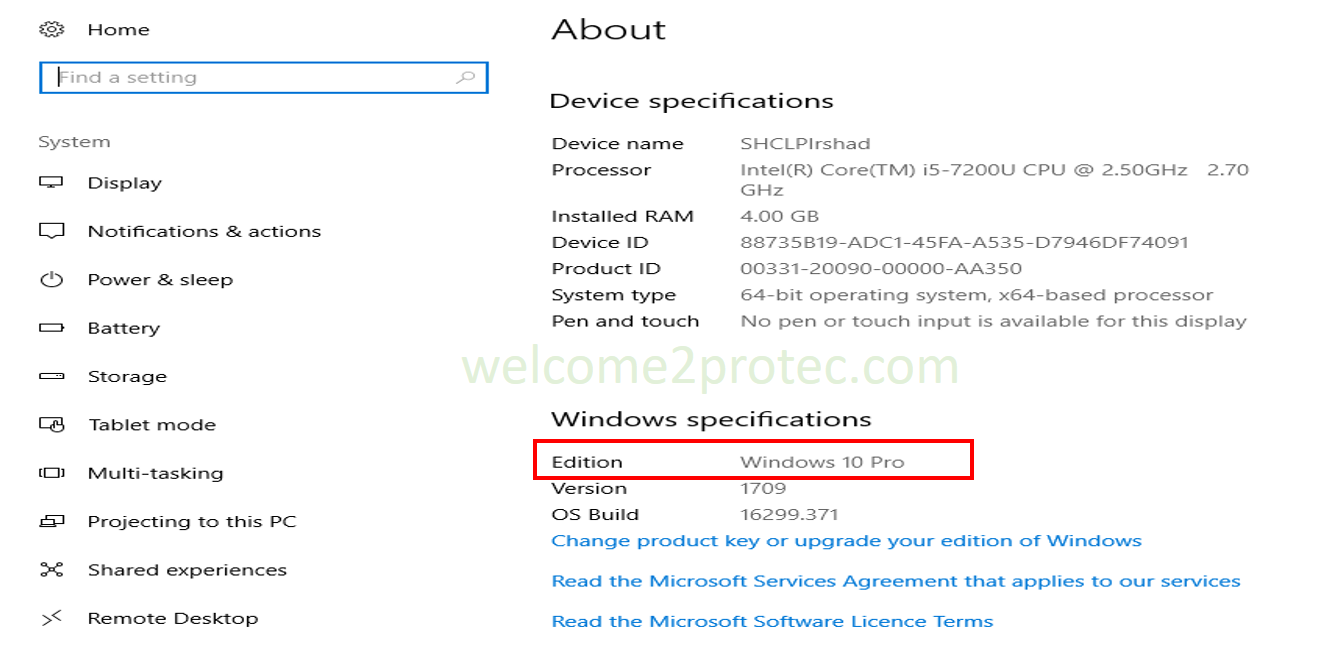
Don't know which version of Windows you are using? You can find your current version of Windows OS by typing About you PC in the Windows search box the press enter. Scroll down to the Windows specifications section. The version of Windows currently installed on you computer will be found under Edition.

Protec | The Aim of Excellence
About your PC | welcome2protec.com | Online IT tutorial Site

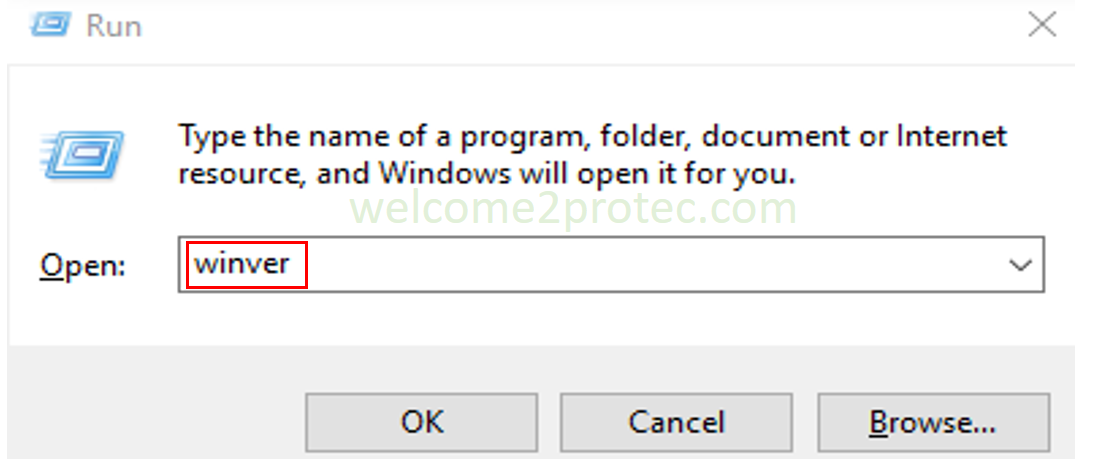
OR you can also check by typing winver on the Run prompt and then press enter. 
To open Run prompt press win logo key + R 


Protec | The Aim of Excellence
Run Prompt | welcome2protec.com | Online IT tutorial Site

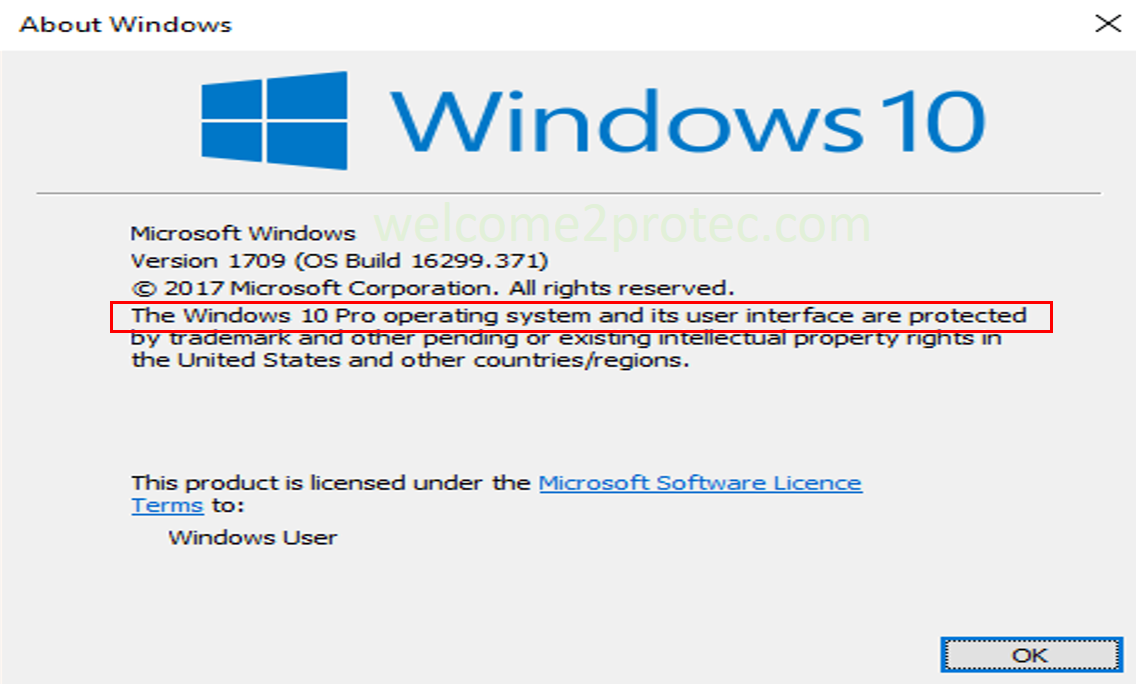
Winver (stands for Windows version) is a command used to check information about Windows OS. To open this window follow the above instruction.


Protec | The Aim of Excellence
About Windows | welcome2protec.com | Online IT tutorial Site

What is BitLocker or recovery key?

A key is generated when you first encrypt your data. You can use this key to unlock or access your data. This key is known as BitLocker or recovery key. In the event of device failure, this key allow you to revert your scrambled data, and make it readable it again. Without it, your data will remain inaccessible.

How to enable BitLocker drive encryption? 

Let's follow the below steps to enable BitLocker drive encryption.

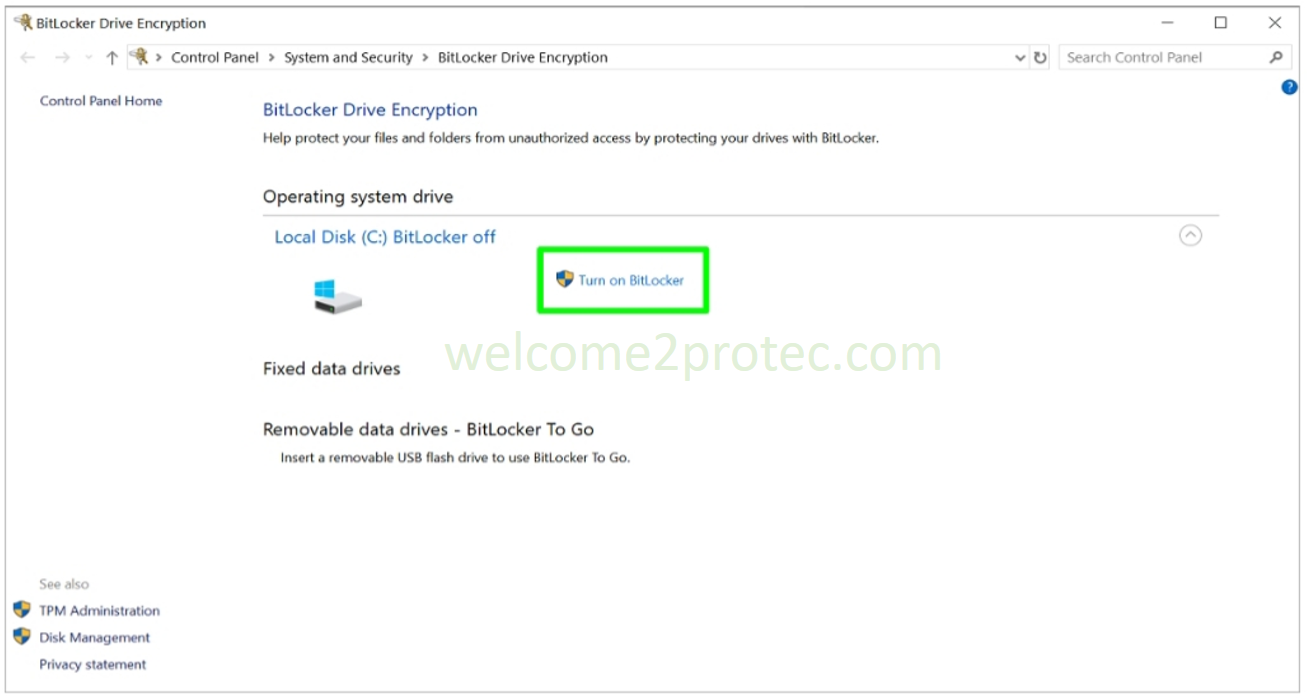
First, type BitLocker in the Windows search box then press enter > Select Turn on BitLocker > click Next 


Protec | The Aim of Excellence
BitLocker | welcome2protec.com | Online IT tutorial site

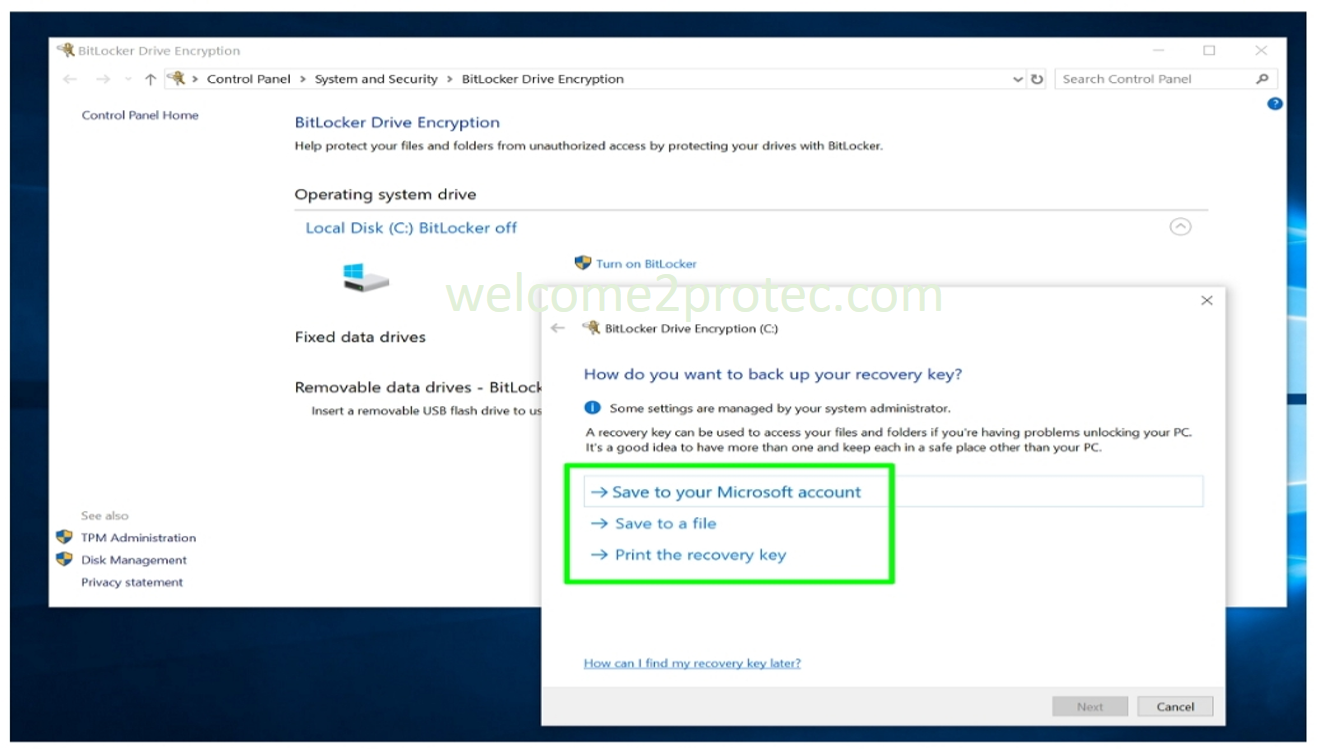
Select save to a file (OR You can select any options as showing in below diagram to back up the recovery key). But make sure that you keep this recovery key in safe place that's not in the encrypted drive. without BitLocker key you cannot access your data. 


Protec | The Aim of Excellence
BitLocker | welcome2protec.com | Online IT tutorial site

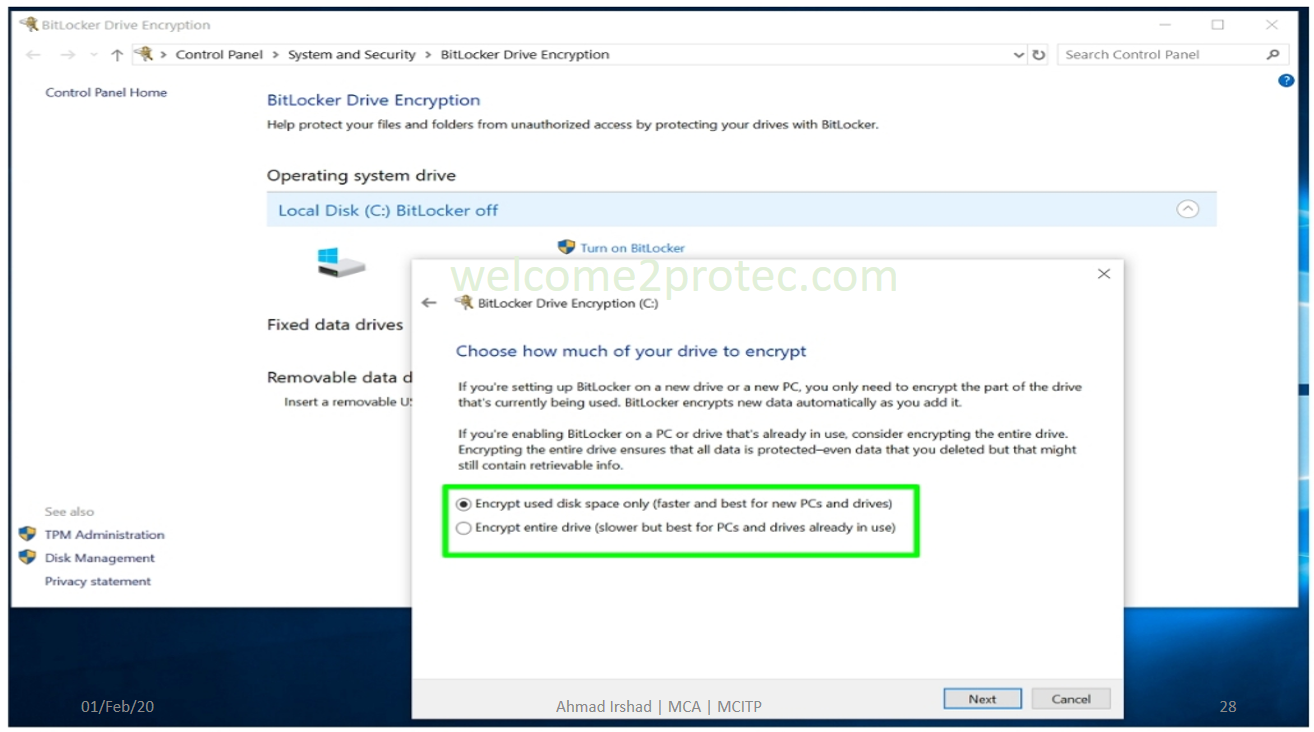
You have two choices: 1) Encrypt used disk spaces only, If you are setting up Bitlocker for new drive or a new PC. then select the first one. 2) Encrypt entire drive. If you are enabling BitLocker on old PC or drive that's already in use then select the 2nd option.

Protec | The Aim of Excellence
BitLocker | welcome2protec.com | Online IT tutorial site

Choose your encryption mode: 

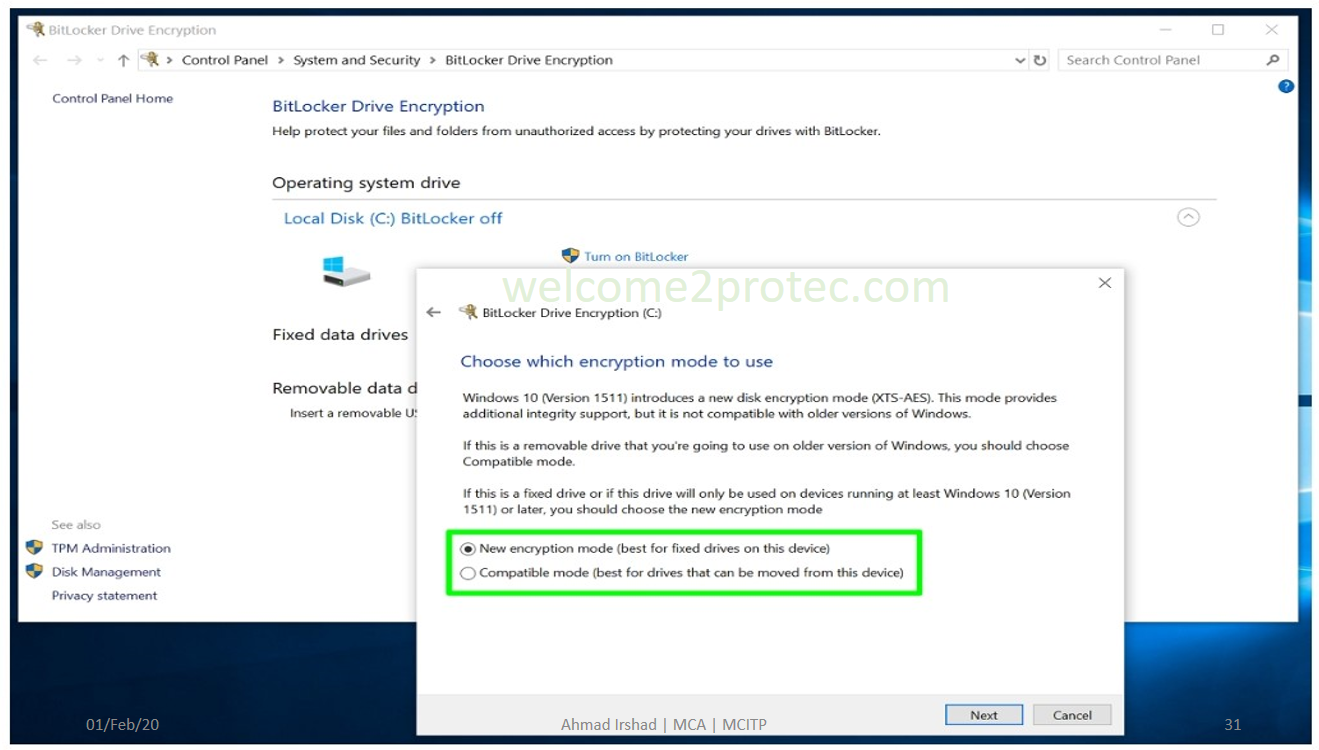
1) New encryption mode. If you are using on newer version of Windows then 1st one is right option. 2) Compatible mode. Else If you are using with older version of Windows, or Version of Windows 10 released before mid-2016 (version 1511 or older) then select the 2nd one option Compatible mode. 


Protec | The Aim of Excellence
BitLocker | welcome2protec.com | Online IT tutorial site

 Select Start Encrypting.


How to Turn off BitLocker?

If you find that BitLocker isn't right for you and you want to disable it. So open BitLocker drive encryption, by typing BitLocker into the Windows search box, and then press enter. Next, then select Turn off BitLocker.  


Opening Soon! (Inn Sha Allah)
Protec | The Aim of Excellence

Visit to know more about us.


Next Topic to be updated soon..>>


Help Others, by sharing this page.

Tuesday, April 7, 2020

Task View

Ahmad Irshad
Protec | The Aim of Excellence
Task View | Virtual Desktop
Task View | Virtual Desktop:
By Ahmad Irshad | Windows 10 > Task View or Virtual desktop

Task view is a feature of windows 10 that allows a user to manage windows across multiple monitors or virtual desktops to expand your desktop, organize groups of related task, and easily switch between them. Task view is also known as timeline view.

Properties of virtual desktop:

Protec | The Aim of Excellence
Properties of task view or Virtual desktop | welcome2protec.com 
Description:

1) Task view icon (Also known as Timeline view): 

You will find this icon on the right side of windows search box, as you can see in the above diagram, by clicking on this icon you will see a same windows as above diagram including all the above properties.

2) Open Applications or windows:

When you click on the task view icon to the right of windows search box. It will show all open applications or windows, virtual desktop if created, as well as recent timeline history. And also + New desktop button will appear on the upper left-hand corner of your screen (But in laptop this button will appear on the lower-right corner of your screen.) 

3) + New desktop: 

This button is used to add or create new virtual desktop. You can find this button on the lower right corner of laptop screen or upper left corner of desktop screen.
follow the below steps to add or create and delete a virtual desktop:

Click on task view icon on your taskbar > + New desktop 

And use the cross button (X) at the top of each virtual desktop to delete this desktop.

4) Created virtual desktop: 

Whenever you create a new desktop, you will see a thumbnail of created desktop at the below of you laptop screen and at the top of your desktop screen. For example you can see in the above diagram. 

5) Customizing virtual desktop: Right click on open window to manage the view of your virtual desktop. 


Keyboard shortcuts of virtual desktop:

Open task view to manage multiple desktop using keyboard shortcuts. Lets's see at the below given keyboard shortcuts:


Windows logo key + Tab: used to open task view.
Alt + Tab: show all the current opened applications. And also can move between them by clicking Tab while holding Alt key.  
windows logo + Ctrl + D: used to create new virtual desktop.
windows logo + Ctrl + [left] or [right] arrow: used to switch between multiple desktop. 
windows logo + Ctrl + F4: used to close current desktop.

Multitasking:

There are two general settings for virtual desktop as given below.


  1. Only the desktop I'm using
  2. All desktops
To open settings Press windows logo + I: > Go to System > select multitasking, then scroll down to virtual desktop. 


Protec | The Aim of Excellence
General settings for Virtual desktop | welcome2protec.com
Both are automatically set to "only the desktop I'm using" but depending on you choice you can change the default setting to "all desktop" so that 


Opening Soon! (Inn Sha Allah)

Protec | The Aim of Excellence

Visit to know more about us.


Next Topic to be updated soon..>>


Help Others, by sharing this page.

Protec Computer Academy (An ISO 9001:2015 Certified Institute, Powered by E-Max Education, Branch Code EMAX/EK-80503, Registered by government of India.) is a best IT training center in Siwan with 100% Job placement assistance. Where you can learn Programming, WebDesigning, Hardware|Networking, Blogging, WordPress, Digitial marketing, English Speaking, And many more...| All certificates are valid in Government Jobs as well as in Private Companies. *** At Tara Market, Beside Vishal Mega Mart - Siwan*** +966532621401, Email- ahmad.irshad781@gmail.com *** Follow us on | | @welcome2protec
Protec Protec Protec Protec Protec Protec Protec Protec Protec Protec Protec Protec Protec Protec Protec Protec
Contact Us